Two iPhone Exploit Kits Mean You Should Update iOS Now

The discovery of two sophisticated iPhone exploit kits—DarkSword and Coruna—within weeks of each other signals a troubling shift. Unlike previous spyware attacks that targeted high-profile users, these exploit kits have been deployed via compromised legitimate websites, so anyone who visits an infected site could fall victim, with no additional clicks or downloads required. This suggests that exploit brokers are now selling tools to multiple buyers, including financially motivated hacking organizations.
Making matters worse, the complete DarkSword exploit code was published to GitHub, making it easy for any hacker to deploy. Security researchers warn that the exploits “will work out of the box” with no iOS expertise required—anyone could copy and paste the code and have it running on a server within hours.
Because it ultimately operates with elevated system privileges, DarkSword can silently harvest alarming amounts of data from vulnerable iPhones, including passwords stored in the keychain, photos, call logs, contacts, browsing history, chat message history, and more. It takes a smash-and-grab approach: collecting and exfiltrating data quickly, then disengaging. Coruna is more targeted and persistent, focusing on stealing cryptocurrency wallet credentials and scanning notes for financial information.
Protection Is Simple
Happily, it’s easy to protect yourself against these and future vulnerabilities: keep your devices up to date. We’ve been beating that drum for years, but DarkSword and Coruna are sufficiently worrying that Apple published a dedicated support page urging users to update, saying: “Keeping your software up to date is the single most important thing you can do to maintain the security of your Apple products.”
If your iPhone is running the latest version of iOS it supports, you’re already protected. But if you’ve been putting off updates—or are still running an earlier version of iOS 18 to avoid iOS 26’s Liquid Glass interface redesign—your iPhone may be vulnerable. Happily, Apple has taken the unprecedented step of releasing an update to an older operating system—iOS 18.7.7—to protect users who don’t wish to upgrade to iOS 26. (You may have to scroll down in the Software Update screen to find it under Also Available.)
Check and Update Your Device
To check your iOS version, go to Settings > General > About and look at the iOS Version line.
DarkSword targets iPhones running iOS 18.4 through iOS 18.7.2. If you’re running iOS 18.7.3 or later, or have upgraded to iOS 26.3 or later, you’re protected. Although none of the DarkSword security reports specifically mention the iPad, it’s best to assume that the corresponding versions of iPadOS are similarly affected.
Coruna can compromise older iPhones and iPads running iOS 13.0 through iOS 17.2.1. Apple recently released iOS 15.8.7 and iOS 16.7.15 to address these vulnerabilities on devices that cannot run newer iOS versions. Devices running iOS 13 or iOS 14 must be upgraded to iOS 15.8.7. Devices running a vulnerable version of iOS 17 should update to the latest version of iOS their device supports.
You can update using Settings > General > Software Update to the latest version of iOS your device supports:
- iPhone 11 and later (and other devices that support iOS 26): Update to either iOS 18.7.7 or iOS 26.4 or later.
- iPhone XR, XS, and XS Max: Update to iOS 18.7.7, the latest version these devices support, which includes the DarkSword fixes.
- Older devices that can’t run iOS 18 (iPhone 6s through iPhone X, plus various older iPads and 7th-generation iPod touch): Update to iOS 15.8.7 or iOS 16.7.15, depending on your device. Devices still running iOS 13 or 14 will need to upgrade to iOS 15.8.7.
If you cannot upgrade for some reason, Apple says that enabling Lockdown Mode in Settings > Privacy & Security > Lockdown Mode in iOS 16 and later will block DarkSword attacks. However, Lockdown Mode significantly degrades the iPhone experience by blocking most message attachment types, disabling certain Web technologies, limiting incoming FaceTime calls, and more. For most people, upgrading to the most recent version of iOS available is the better option.
These discoveries make it clear that installing security updates promptly is more important than ever. Sophisticated exploits that were once reserved for targeted attacks against activists and journalists are now being deployed more broadly. Check your iOS version today, update all your devices, and encourage family members and colleagues to do the same.
Not All Your Mac’s USB-C Ports Are the Same
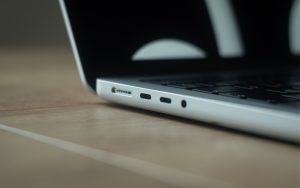
We recently helped a client set up an external boot drive on a Mac mini for testing, but the installation kept failing near the end with vague errors. We tried different cables, swapped drives, and more, to no avail. On a hunch, we moved the SSD to a different USB-C port, and the installation completed on the next attempt. But the port wasn’t bad—it was just the wrong port. Here’s what we mean.
All the USB-C ports on a Mac look identical, but they don’t all behave the same way. On Macs with Apple silicon and Intel-based Macs with the T2 chip, Apple designates one port as the DFU (device firmware update) port. Most of the time, this distinction doesn’t matter—you can plug a device into any port, and it’ll work normally. But for certain tasks, using the wrong port can cause mysterious failures that waste hours of troubleshooting time.
Note that we say “USB-C” here, even though in most cases, these are Thunderbolt ports. However, Thunderbolt uses the USB-C connector, and Apple refers to the ports as USB-C ports, so we’re following Apple’s lead.
When It Matters Which Port You Use
The DFU port exists for one specific purpose: reviving or restoring your Mac’s firmware using another Mac and the Apple Configurator app. This recovery procedure requires connecting a USB-C cable (not a Thunderbolt cable!) to the DFU port. It’s extremely uncommon to need to revive a Mac in this way, but it might be necessary if the Mac starts up to an exclamation point in a circle, starts up to a blank screen, shows the status indicator light pattern for firmware recovery mode, or has problems installing macOS.
For most everyday tasks, the DFU port should work like any other USB-C port. However, Apple has documented one notable exception on Macs with Apple silicon: when installing or updating macOS on an external drive, avoid using the DFU port. If your external drive is connected to it during installation, the process may fail partway through, often without a useful error message and certainly without a clear “Connect your drive to a different port” message. You might see vague notifications like “Some updates could not be installed” or cryptic errors like “com.apple.OSInstallerSetup.error 702.” After installation or updating completes, you can connect your external drive to any port, including the DFU port.
We’ve also heard of situations where seemingly inexplicable problems, such as errors from an Apple SuperDrive attached to a Thunderbolt dock, were resolved by switching to a different port. It wasn’t always clear which port was responsible, but it’s always worth trying a different one if you have trouble.
Finding Your Mac’s DFU Port
How do you figure out which USB-C port is the DFU port? Apple maintains a support document describing the DFU port locations for each Mac model. The location varies by model and, within the same model, sometimes by generation. Apple does not explain why a particular port is designated as the DFU port or provide another way to identify it. All you can do is refer to Apple’s documentation.
Unfortunately, users have found errors on that page in the past, so if you’re experiencing unexplained installation failures or other errors, try a different port even if you believe you’re using the correct one.
DFU Port Takeaways
For everyday use—connecting displays, drives, docks, and other peripherals—you shouldn’t need to think about which port you’re using. The only time you must use the DFU port is when reviving or restoring a very unhappy Mac.
However, if you’re setting up an external boot drive or updating macOS on an external drive, take a moment to identify your Mac’s DFU port and plug your drive into a different one. And if a peripheral, even if it’s connected through a dock, behaves inexplicably, treat the port itself as a variable. Before troubleshooting cables, drives, or software, move the connection to another USB-C port. This simple step can save you from frustrating troubleshooting sessions where everything appears to work but ultimately fails.
Understanding New MacBook Battery Charging Features